
Microduck troubleshooting: power, controller and walking fixes
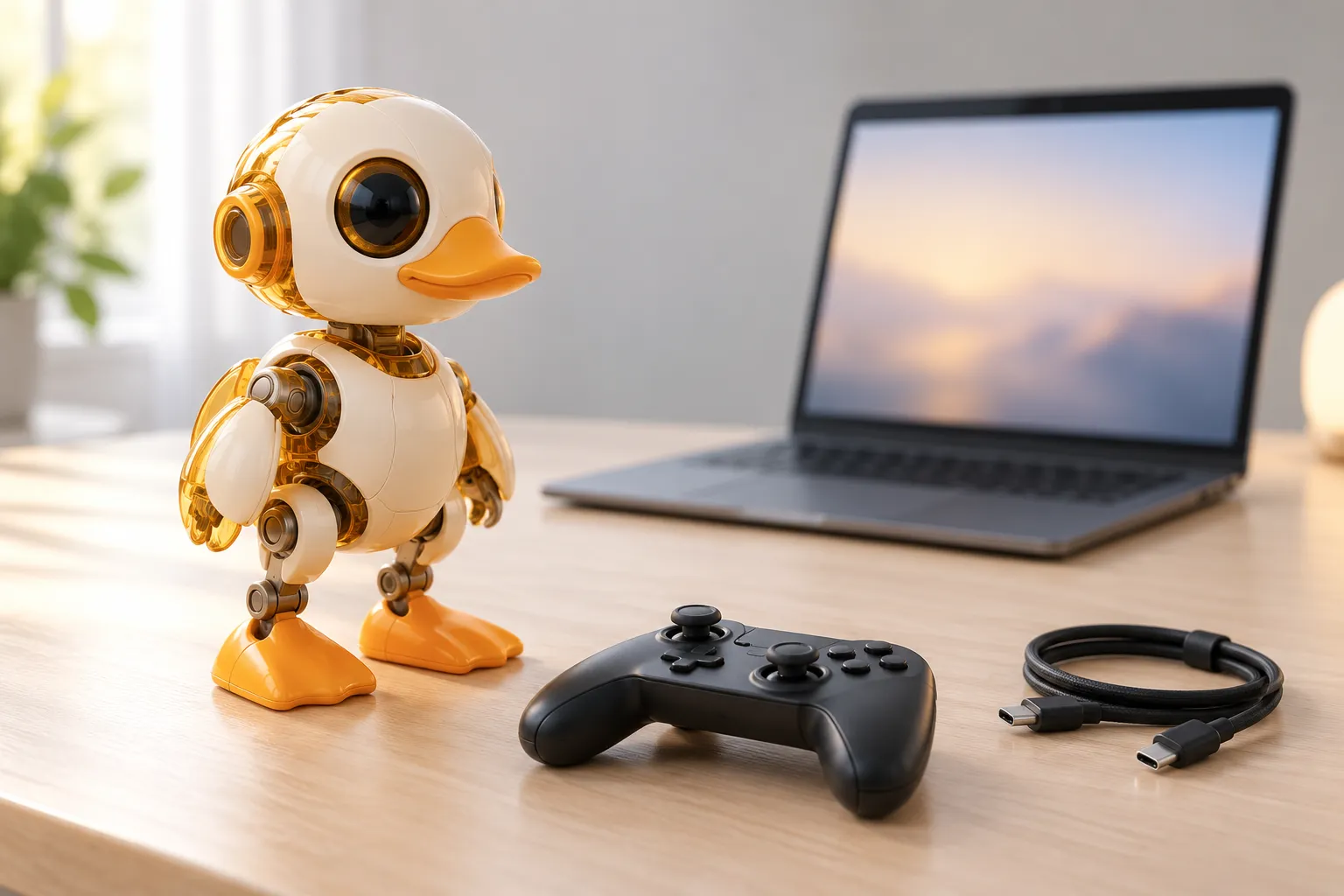
Short answer: start with a safe surface, a charged pack and one reproducible symptom. Check robotctl health, then work through power, controller, policy, network or update in that order. Do not keep restarting a robot that smells hot, has a damaged battery or is repeatedly tripping the same joint.
Microduck is a real biped, so “not working” can mean a flat battery, a controller that never bonded, a carpet that the gait cannot handle, a policy that failed to load, or an update that has not finished. The table below is the fast route to the right check.
First three things to do
- Make the scene safe. Put the robot on a hard, level, dry surface, away from a table edge. If it is hot, smells unusual or has a damaged cable, power it off and do not recharge it.
- Write down the symptom. “Will not walk” is not reproducible; “powers on, controller connects, Start makes the legs twitch once, then it sits” is.
- Take a ten-second video. Keep your hands and the table edge out of the robot's fall path. This is the evidence support will ask for if the issue is hardware.
The official command reference is the robot cheat sheet and duckctl guide. The commands below come from those pages.
Symptom table
| Symptom | Check first | Then |
|---|---|---|
| Will not power on | Pack seated, pack voltage, charging cable and port | Charge or swap the pack, then robotctl health |
| Controller will not connect | Pad is on, charged, in pairing mode and bonded to this robot | Re-pair with sudo robotctl pad pair; see the official pairing guide |
| Connects but will not walk | Battery level, policy enabled, robot on a firm surface | Press Start, check robotctl policy list, then test away from the edge |
| Walks off course or falls often | Surface, foot pads, low battery, a recent policy change | Reset the policy if needed, then test on a clean hard floor |
| Policy fails to load | File shape and policy slot | Run robotctl policy list and robotctl policy reset <slot> |
| Update seems stuck | Update status and logs | Run duckctl update status, wait for the restart, then duckctl update rollback if it is unhealthy |
| Camera or depth is unavailable | Network state, service logs, client connection | Check duckctl logs mediad or duckctl logs tofd; camera streaming needs WebRTC |
| Browser simulator will not start | Hugging Face Space status, browser, network | Reload the Space; for local simulation check the docs and hardware requirements |
Power and battery
Power problems are usually boring: the pack is not seated, the pack is empty, or the robot is refusing to start because the last shutdown was not clean.
- Confirm the pack is fully seated and the connector is not damaged.
- Use the USB-C cable from the box or the official dual charger.
- Put the robot on a hard surface before testing movement.
- Run
robotctl healthand read the battery line, not only the face LEDs. - If a pack is swollen, leaking, wet or hot, stop. Do not charge it and contact support.
The voltage display is an estimate under load. A pack can sag during a hard move and recover at rest; the maintenance guide explains the 70/40/15% gauge and the 5% red blink.
Controller and Bluetooth
The gamepad is a Bluetooth device, and a pad that is merely “on” is not the same as a pad that is paired and trusted. The robot's padd service reads the controller and turns its sticks into motion intents.
Typical checks:
sudo robotctl pad pair
robotctl health
duckctl logs padd
Put an Xbox pad into pairing mode with the small Sync button until its light flashes quickly. A Switch-style Pro Controller uses the same small Sync button until the player lights sweep. If two pads are in pairing mode, the robot refuses rather than guessing; name the MAC address from the guide.
If the pad was paired but does not reconnect after a reboot, it may be paired but not trusted. Re-run sudo robotctl pad pair with the pad in range. The official pair-a-gamepad guide covers the Xbox/Pro Controller differences and the radio edge cases.
Wi-Fi, Bluetooth and the console
You do not need Wi-Fi to drive the robot with the controller. The network side is for the browser console, uploads, updates and development. If the console is missing, check the robot's network state before changing the robot:
duckctl wifi status
duckctl wifi scan
duckctl info
duckctl wifi connect needs no existing network connection; it is designed for the case where the robot has never joined one. Joining a new network can disconnect an existing SSH session, which is expected. If the camera is the only thing missing, check mediad; the depth sensor belongs to tofd.
Walking faults and “not a fault”
Walking is a learned policy, not a scripted animation. These are normal:
- the duck walks differently on carpet, tile and a smooth desk;
- it takes a moment to recover after a push;
- a low pack changes how firmly it can push;
- a policy trained on one terrain behaves differently on another.
These deserve a check:
- one leg drags consistently on every surface;
- a joint makes a repeated click or the robot trips the same motor;
- the robot cannot stand after a clean power cycle;
- a foot pad is loose, torn or covered in grit;
- the robot walks differently immediately after a policy update.
Put it on a firm floor, reset the policy, and test again. If the symptom follows the robot across surfaces, stop and collect evidence instead of repeatedly power-cycling it.
Policies and moves
The robot has policy slots for walking and other behaviours, plus skills such as a kick or a bow. The important commands are:
robotctl policy list
robotctl policy load walk /path/to/policy.onnx
robotctl policy reset walk
duckctl policy list
The daemon refuses a file that is not the expected 61-value observation to 14-value action shape. A failed load keeps the policy that was already running. If a slot is pointing at a file that has disappeared, robotctl health reports it as degraded and names it; robotctl policy reset <slot> clears the slot. See Microduck policies for the full contract.
Updates that seem stuck
An update intentionally restarts the daemons, and the btd connection can drop about five seconds after the command replies. Reconnect before deciding the update failed.
duckctl update status
duckctl update log --limit 20
duckctl update rollback
The updater installs signed releases, runs a health check and can return to the previous release. If the robot is not healthy after a fresh boot, use duckctl update rollback rather than repeatedly applying the same release. If update status cannot answer because the robot is unreachable, use the Bluetooth path or the local console described in the update documentation.
Camera, depth and the simulator
mediad streams the camera over WebRTC; tofd serves the depth sensor. The browser console needs a network path to the robot, so a working controller does not prove the video path is healthy. Run duckctl logs mediad and duckctl logs tofd, then reconnect the browser.
For the browser simulator, start with the hosted Space. If the Space is sleeping, it may take a moment to wake. For a local simulator, use the official run instructions in the simulation guide. A browser tab that has lost its WebSocket or WebRTC connection is not evidence of a broken robot; reload the page before changing robot settings.
Safe stop and escalation
The controller's Select button held for two to four seconds asks the robot to rest: it sits, eases into the rest pose, then releases torque and reboots the servos. Use this when you need a clean stop without pulling the pack. Do not hold Start to “fix” a fault; Start enables the policy again.
If the robot is in an unsafe state, power it off and remove the source of motion before troubleshooting. Then work up this ladder:
- The official documentation and the robot's own
robotctl healthoutput. - The GitHub issues for a reproducible bug.
- The Pollen Robotics Discord for community experience with the same symptom.
- support@microduck.homes for an order-specific or hardware issue.
Support email template
Subject: Microduck fault - [one-line symptom]

Order number:
Shipping country:
Robot colourway:
Robot version (robotctl version):
Health output (robotctl health):
What happens:
What I tried:
Ten-second video: [attachment or link]
Microduck troubleshooting FAQ
How do I re-pair the Microduck controller? Put the gamepad into pairing mode and run sudo robotctl pad pair on the robot. The robot finds the pad in pairing mode and marks it trusted so it can reconnect after a reboot.
What should I do if Microduck will not connect after an update? Wait for the connection to drop, reconnect, and run duckctl update status. A dropped connection during an update is expected because the daemons restart; use update rollback if the new release does not become healthy.
Can I restore the official Microduck policies? Yes. Run sudo robotctl policy reset to restore all slots, or reset one slot such as walk. A failed policy load keeps the policy that was already running, so trying a replacement should not remove a working gait.
Why does Microduck walk badly on a carpet? The shipped walking policies are trained for firm surfaces. Carpet depth and edge drag can look like a fault even when the robot is healthy. Test on a hard, level surface before changing settings or policies.
How do I ask for help with a fault? Start with the docs and GitHub issues, then the Pollen Robotics Discord. For hardware or order-specific help, email support@microduck.homes with the order number, robot version, a short video, robotctl health output and the relevant log lines.
Where to go next
- Microduck maintenance - battery, charging and cleaning
- Microduck getting started - the first hour with the robot
- Microduck policies - slots, skills and ONNX files
- Microduck simulator - test before touching hardware
- Microduck FAQ - buying, delivery and software answers
- Documentation - the complete technical map